Nature inspires me. Colors, patterns, interactions can all be learnt from your surroundings. I often found myself getting color themes and palettes from my surroundings, but there was no way I could remember these colors or identify there digital information. I needed a solution which will help me identify, save and use those colors in my projects.
The Question
How to create a seamless experience to collect and store information about colors from physical world?
The Ideas
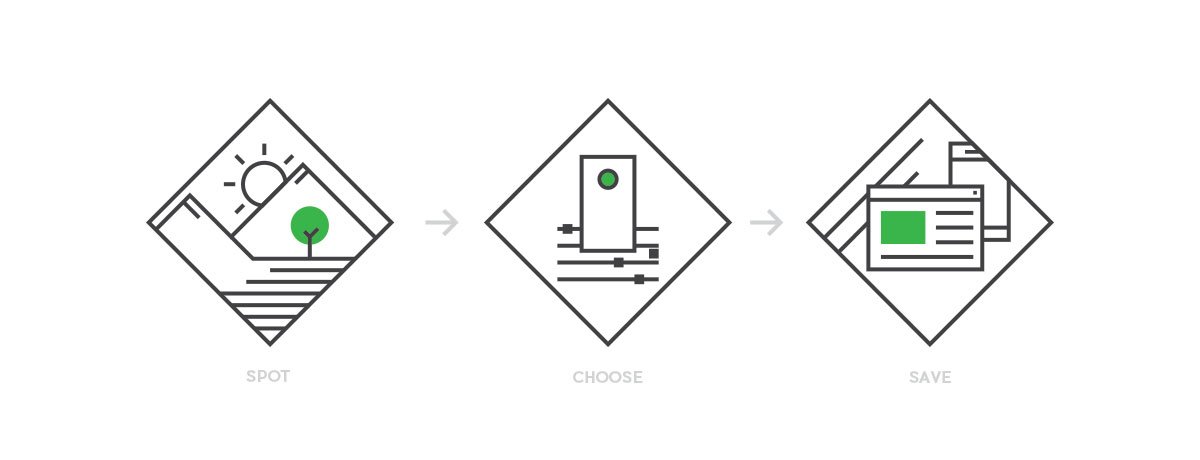
The idea is simple. The users should be able to identify digital details of any colors present around them. The app is mainly targeted at digital and print designers. I visualized the app in three simple steps. 1. Spot the color, 2. Choose the right tint or shade, 3. Save or share the details. With these 3 steps in mind, I started working on the user-flow and low-fidelity wireframes.
We recently released a Win10 app with accessibility features
My friend Asit Parida has recently created a Windows 10 version of this app. It was not designed to be a desktop app but with some adjustments we were able to port it to Windows 10. We have improved the feature set of the app furthermore by adding color contrast analysing tool.
Goto Github →Think, sketch, optimize and repeat
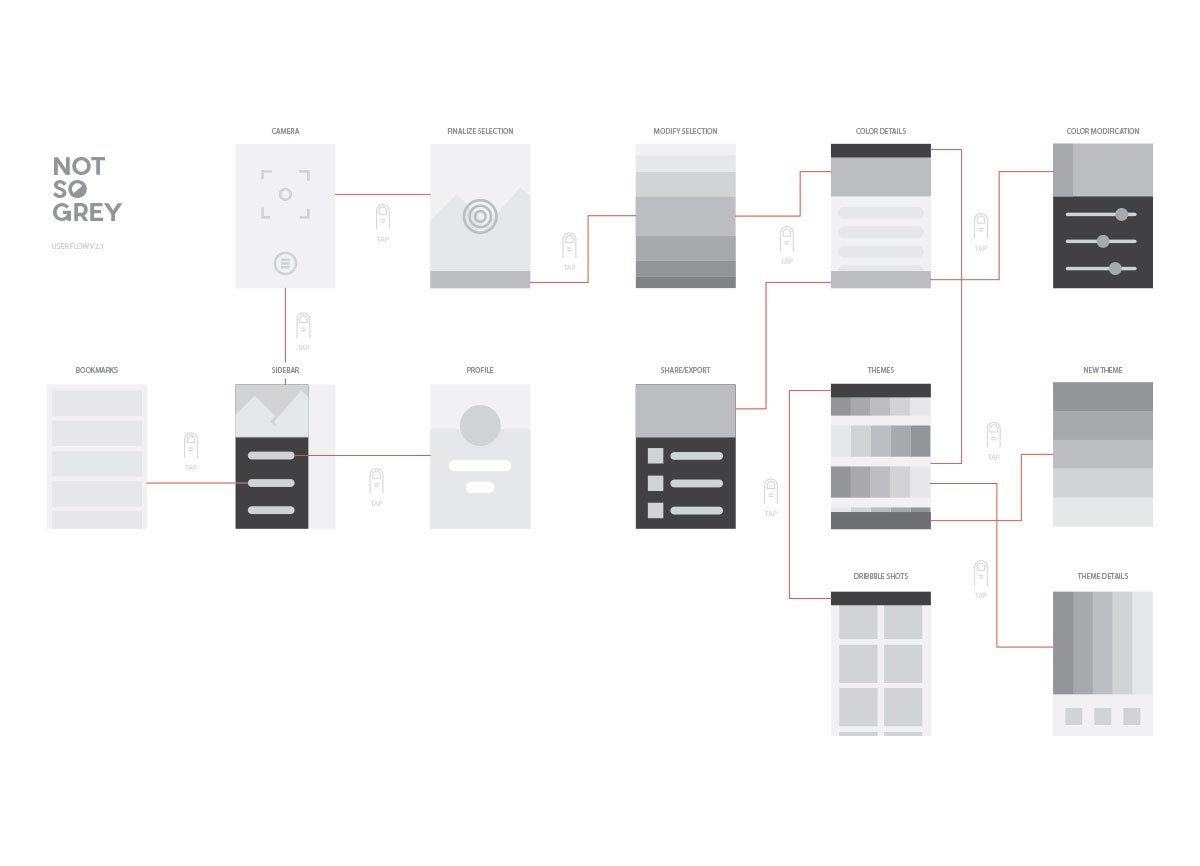
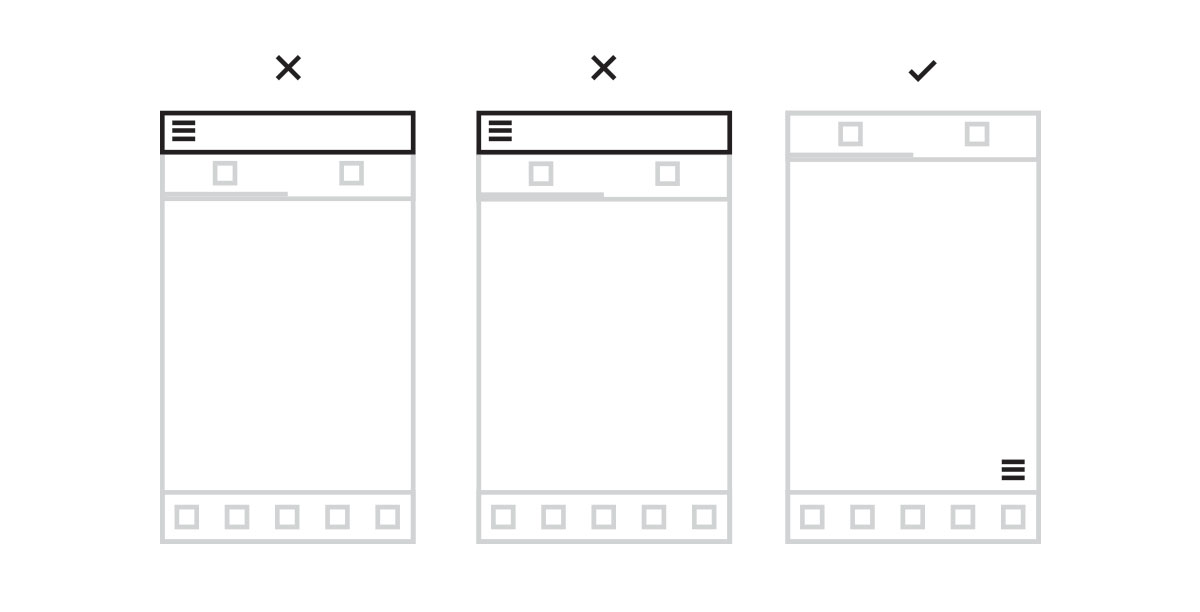
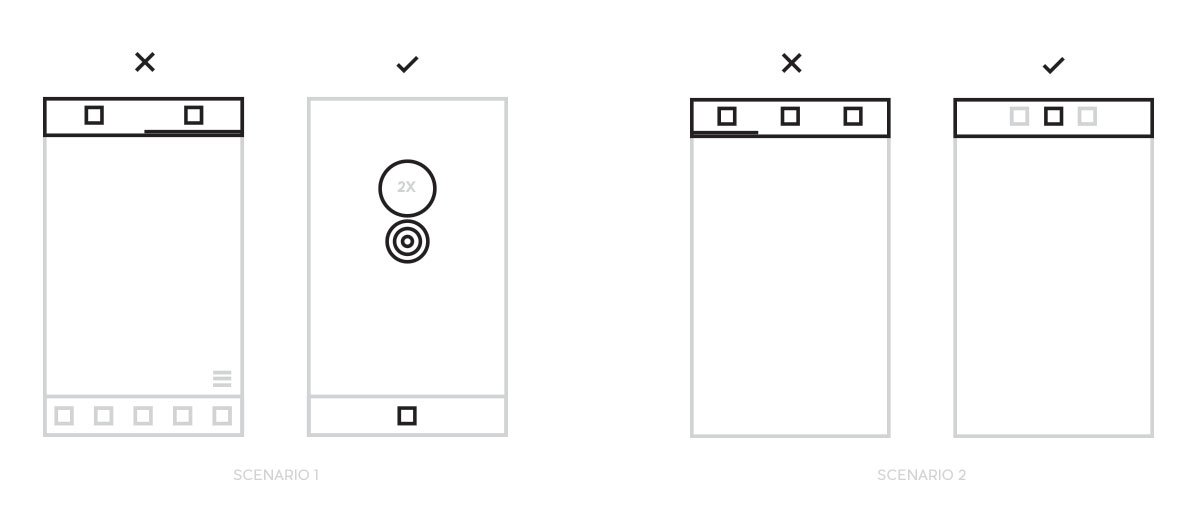
A click-through prototype using the wireframes was created. I also tested it with the help of my designer friends, who would in the end be the potential users. A/B testing helped me decide the position of the Hamburger menu, also the need to have separate pages for color details. After testing it with users, I realized that the title bar was unnecessary in this app, the actions could be put at the bottom of the screen, where they will be easily reachable.
4 shades of grey
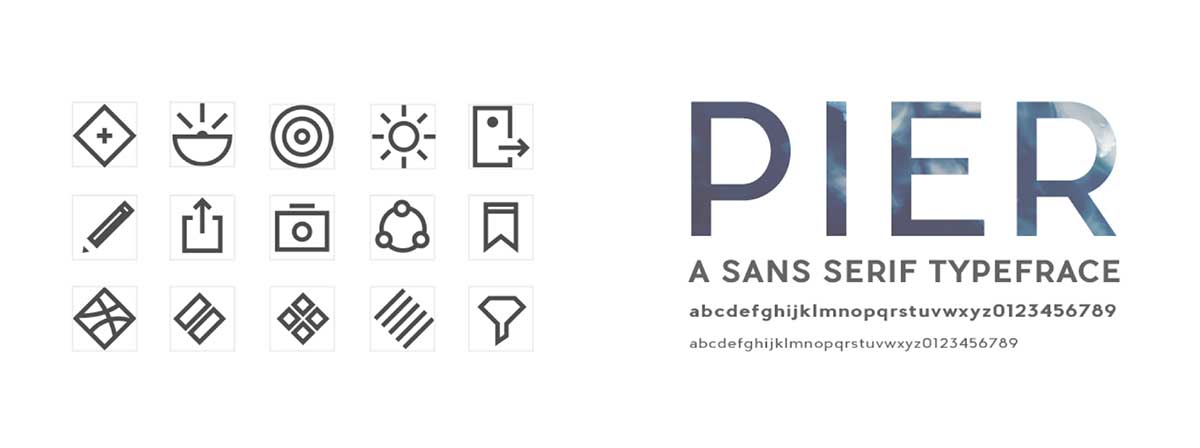
The application is about colors and I wanted to keep it that way. Hence decided to keep the UI minimal and use neutral colors which would not interfere with the user selected colors.

Step 01: Spot
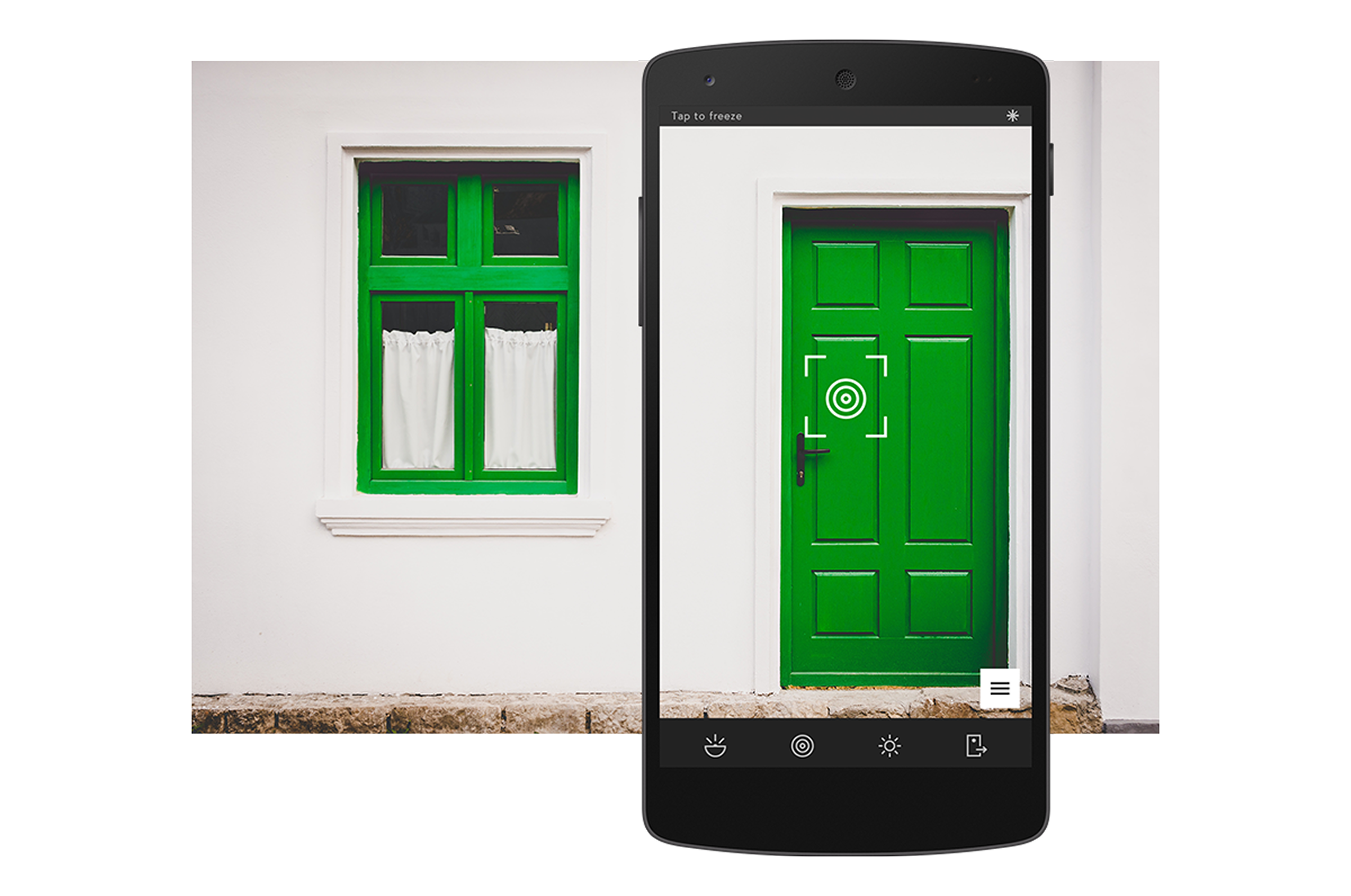
The first step is to spot colors around you and capture them using the app. There are some generic settings which help users take a good photo in multiple conditions. You can also drag the pointer and select a specific color from the captured image. The 2x zoom indicator shows you the selected color.
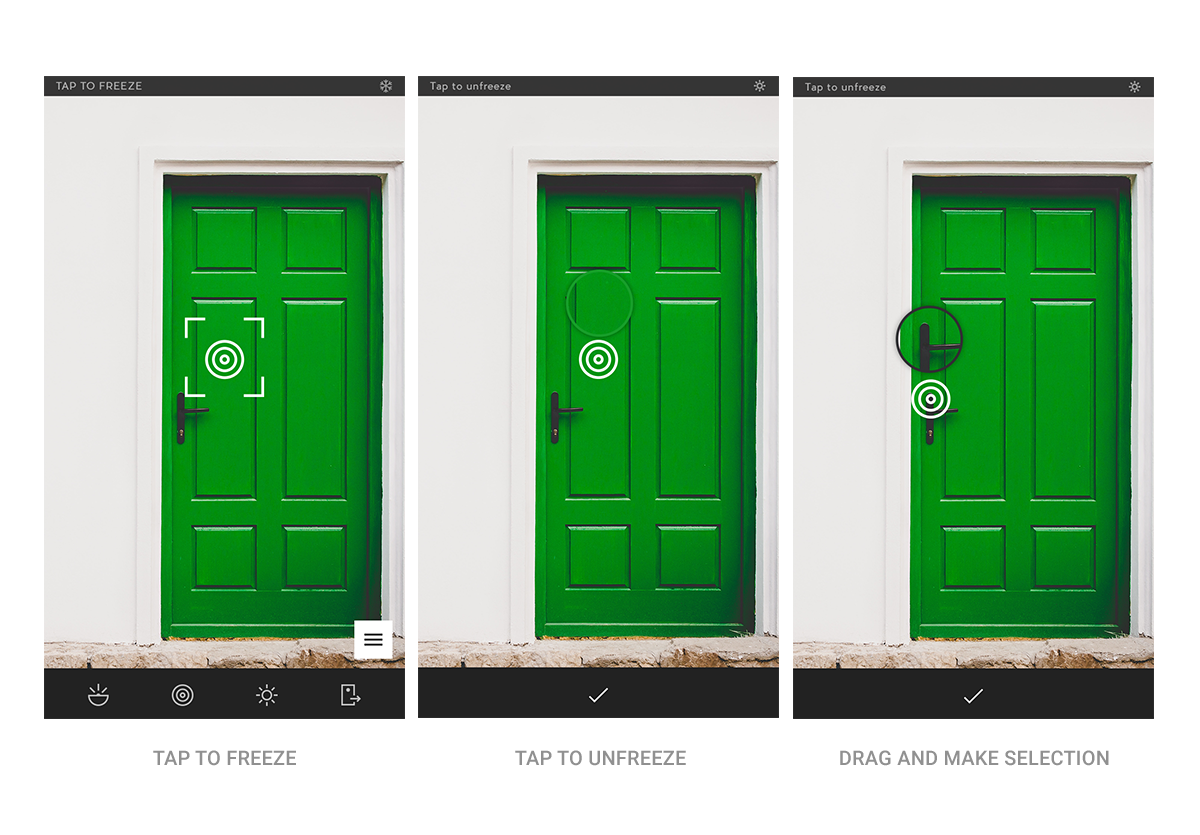
Step 02: Choose
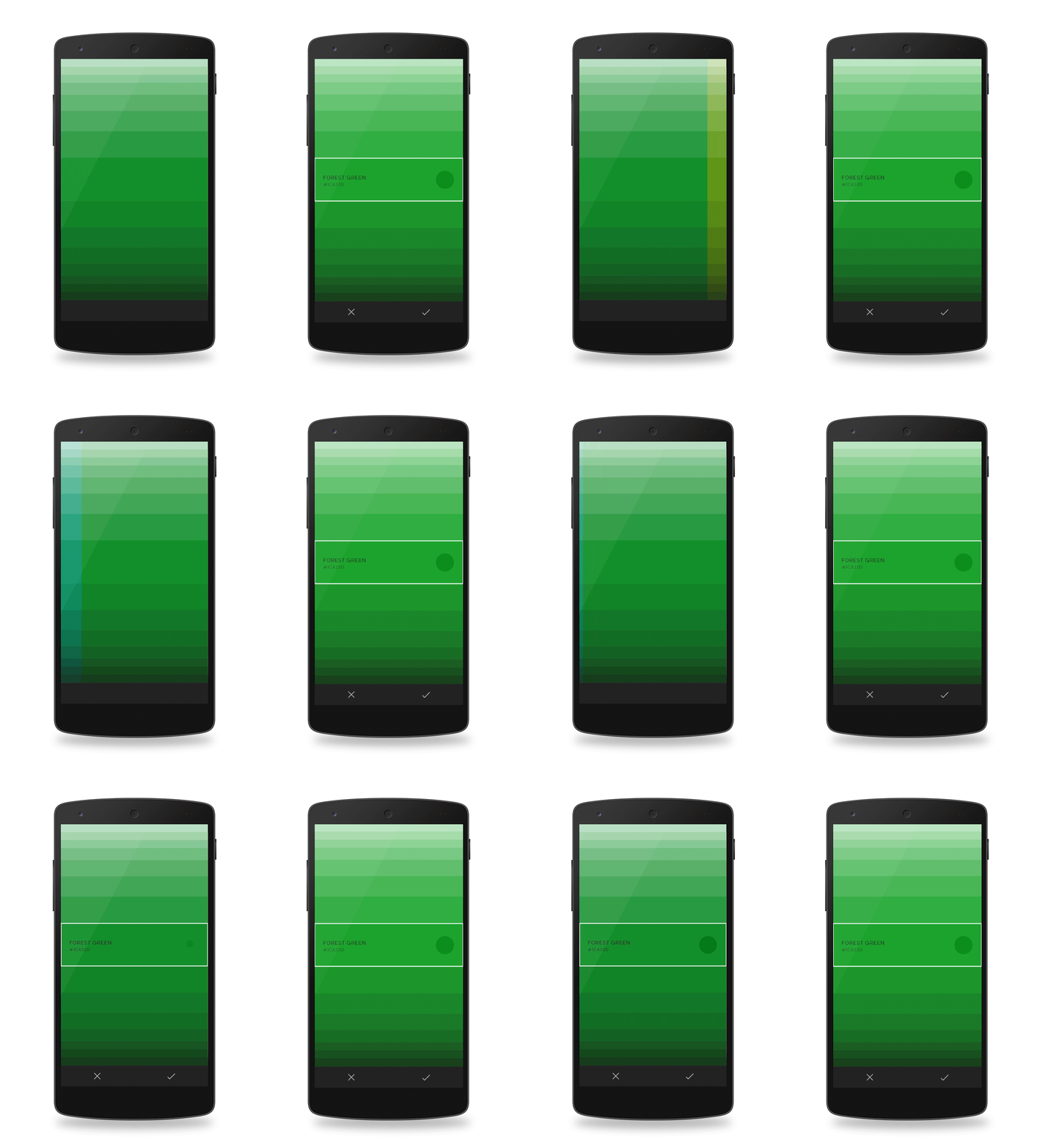
Users can modify the selected color by sdjusting the shades and tints. Users can swipe left or right to get the next set of colors from the spectrum.
Step 03: Save
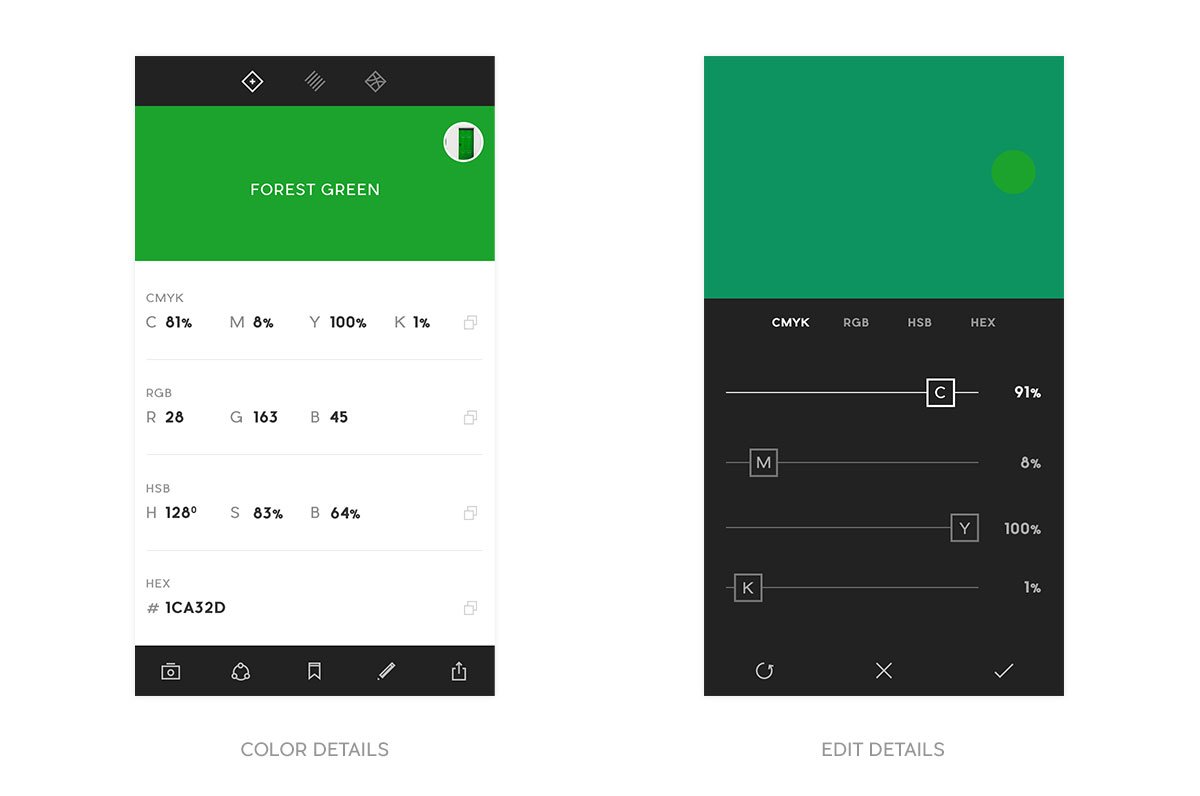
This step shows the details required of the selected color. You can choose to share it via other applications or save the color details in your Adobe CC library. For the color nerds, there is an option which helps focusing on the details and changing the CMYK, RGB, HSB or Hex values to get the exact color.
Associated themes
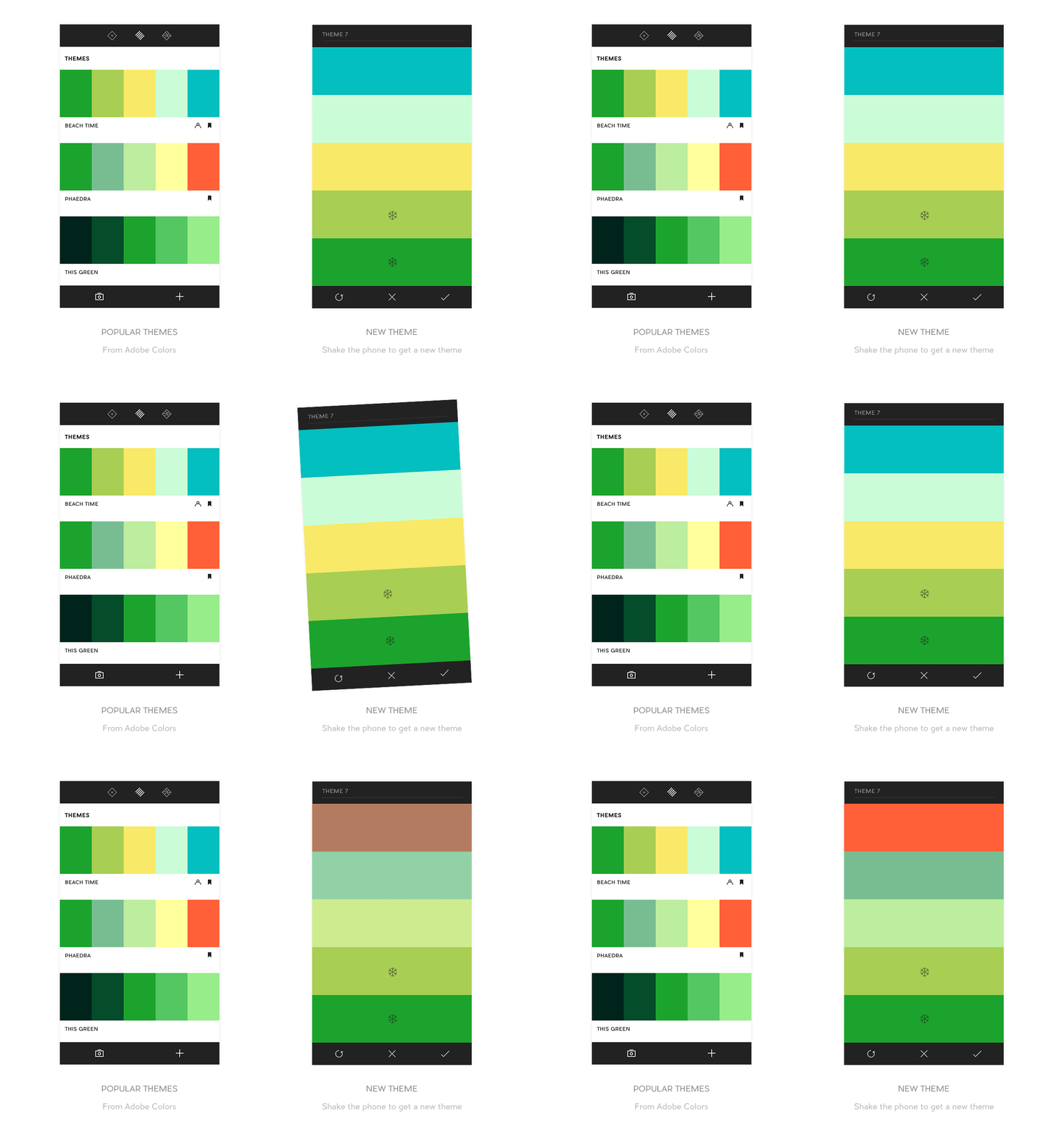
Themes or color palettes are a must as it would be a helpful feature if users can see some popular color themes associated with the selected color. At the same time the users can also create their own custom themes for future reference. I wanted to integrate a beautiful app called Coolors with this flow but later decided against it and borrowed the custom theme idea from there.
Dribbble integration
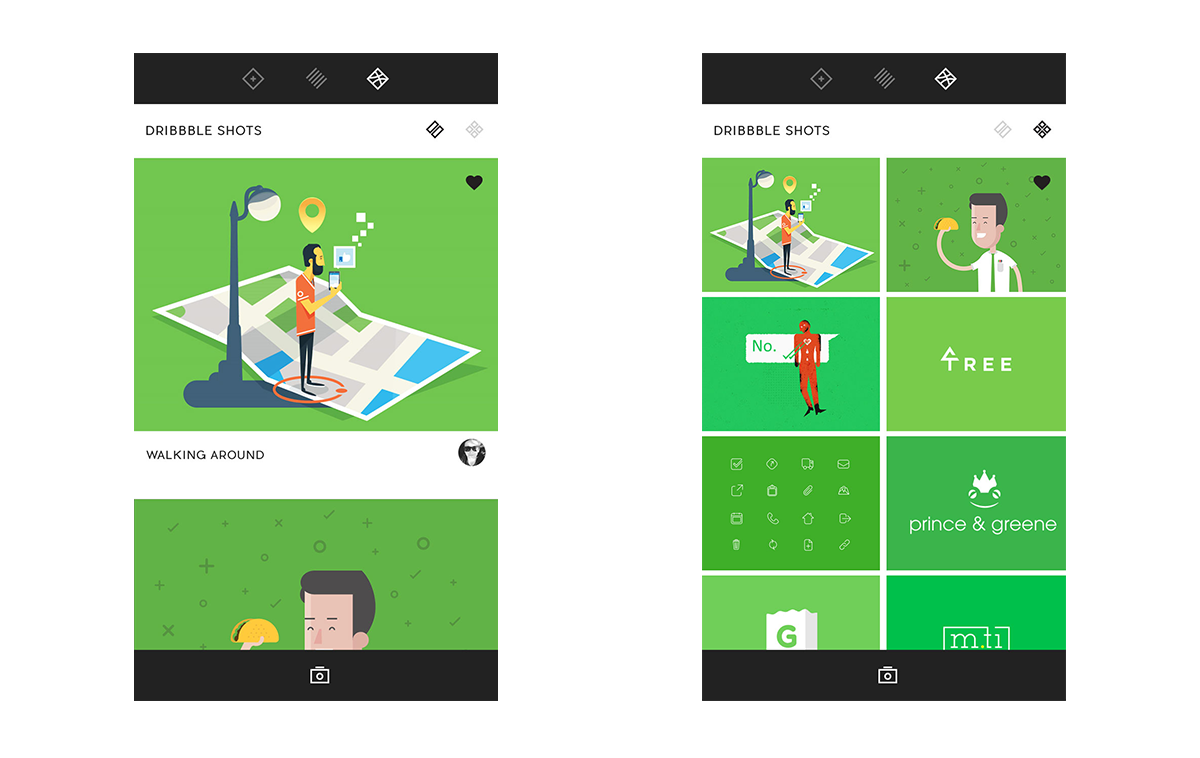
Dribbble is the sacred place that designers go to for any kind of inspiration. It helps ito see how designers across the globe use the selected color.
Appicon and website
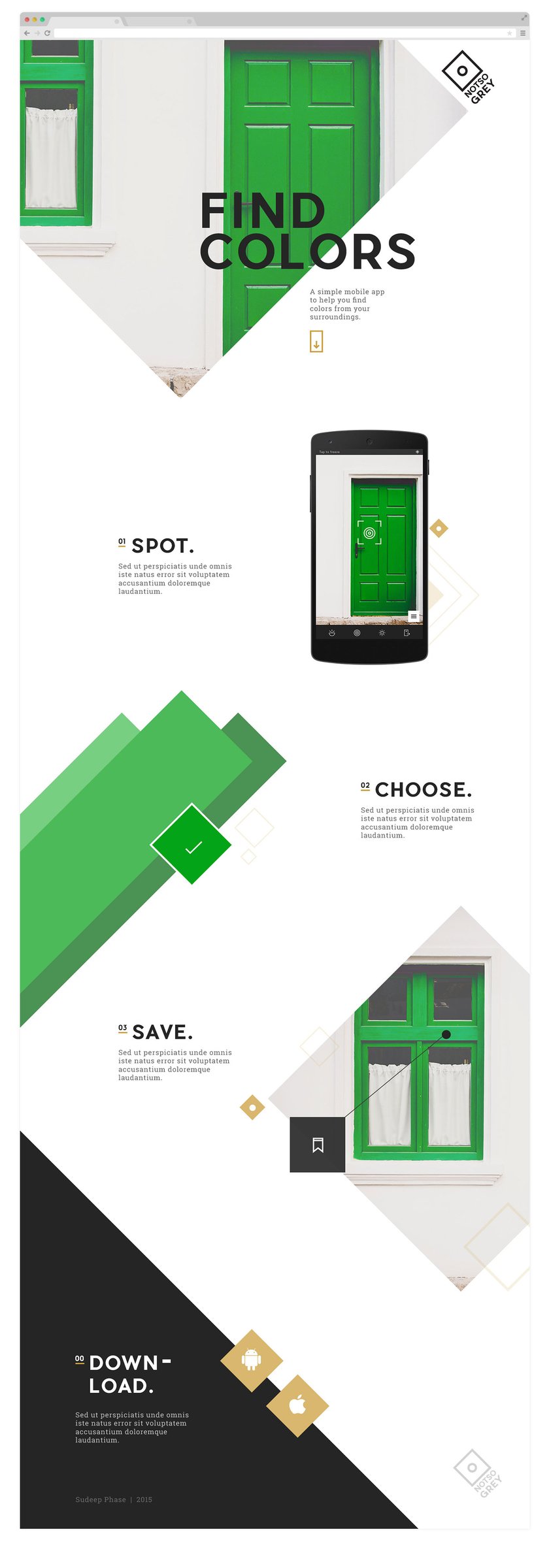
I wanted to convey the simplicity of the application. For this, I came up with a shape which depicts a mobile camera in it's simplistic form. The website is conceptualized with the logo's diamond shape in the middle. Again, the core elements are very neutral and non-interfering with the content; the same way the app behaves.